

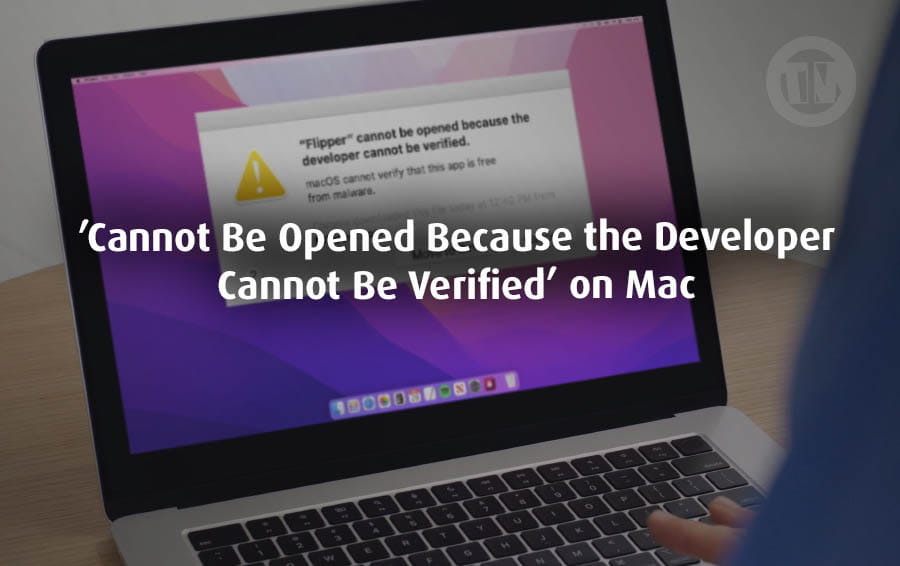
One problem that can arise on a Mac is when you open an app and a warning appears..
“(App name) can’t be opened because it’s from an unknown developer”, or perhaps “Apple couldn’t check it for malicious software”. Or, even worse, “The developer couldn’t be verified”.
MacOS has a built-in security feature called Gatekeeper. This feature acts like a security guard at the door, ensuring only trusted guests (in this case, apps) can enter. By default, Gatekeeper only allows apps from the Mac App Store or from developers who have registered and verified themselves with the Apple Developer Program.
This means that if a developer hasn’t gone through Apple’s verification process—which includes registering, obtaining a Developer ID, and scanning their app for malicious code like malware or adware—macOS will block the app from opening. No exceptions.
And that’s why you get that warning.
It’s not that Apple wants to be overly controlling, but rather that it wants to keep your Mac secure. While Macs are generally more resistant to viruses than Windows PCs, they aren’t invulnerable.
Malware still exists, and Apple wants to ensure only clean and trusted software is running on your system.
So, let me at least briefly summarize what triggers this notification..
- If the app comes from a developer who hasn’t registered with Apple, you’ll see this warning.
- Even if the developer has registered but hasn’t submitted the app for review, same deal.
- Some older apps—especially the ones made before this whole verification process even existed—can also trigger this warning. They might be safe, sure, but since Apple hasn’t had a chance to take a peek, Gatekeeper still flags them.
The bottom line is that macOS takes app security seriously. If it can’t verify the source, the app will be closed immediately.
But don’t worry—there’s a safe and convenient way to open these apps (because that’s our goal here), especially if you’re sure the app isn’t suspicious.
How to Fix the ‘Cannot Be Opened Because the Developer Cannot Be Verified’ Error on Mac
So if you are sure that your new application on Mac is safe from various potentials, here are various ways to overcome it..
1. Try to Find a Newer, Verified Version of the App
If you downloaded an app from a random website, it’s likely an outdated version. Developers are constantly updating their apps, and if the app you downloaded is outdated, it probably hasn’t received official Apple approval.
So, open the Mac App Store, type the app’s name in the search bar, and see if it appears. If you find it there, it’s likely signed, notarized, and ready to go.
Installing it from the App Store gives you peace of mind that Apple has checked it for anything suspicious.
If it’s not there, check the developer’s official website. They may have uploaded a newer, signed version after Apple’s review process.
2. See If There’s an Alternative App That Does the Same Job
If your app isn’t verified and you’re a bit hesitant about changing your security settings, it might be time to look for a similar app that is.
Let’s say you’re trying to use a screenshot tool, a code editor, or a file converter—there’s probably more than one app that can handle the task. Open the Mac App Store or do a quick search for apps with similar features.
If you find an app from an Apple-approved developer, you’ll be able to install it without having to deal with all those annoying warnings.
Sure, switching apps might feel like a compromise, but sometimes it’s an easier—and safer—way to get back to work.
3. Override Gatekeeper Using Finder (If You Trust the App)
Let’s say you really want to use this app, and you’re sure it’s safe (perhaps you’ve used it on another device). If that’s the case, you can bypass the block quite easily using Finder.
Here’s how to use it..
- Find the app in Finder—usually in your Downloads or Applications folder
- Control-click (or right-click) the app icon
- Click Open in the menu that appears
- macOS will show a warning again, but this time, it’ll also give you the option to Open Anyway
- Once you confirm, the app will launch and macOS will remember your decision, so you won’t have to jump through hoops again next time
This is a good workaround for apps you trust but that macOS doesn’t yet recognize.
4. Manually Allow the App from Privacy & Security Settings
If the right-click method above doesn’t work or the application still won’t open, it’s time to check your Mac settings further.
For macOS Ventura and newer
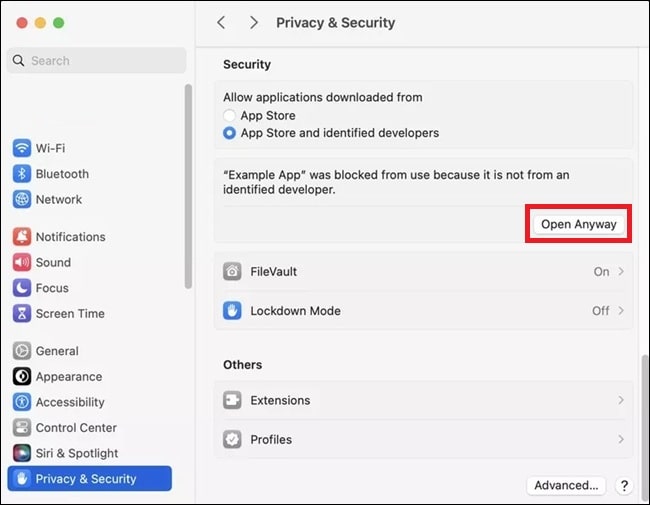
- Go to System Settings (just search for it from Spotlight if you’re not sure where it is)
- Head over to Privacy & Security
- Scroll down and look for the Security section
- You’ll see the app listed there along with a message about being blocked
- Click Open Anyway, and you’re in
For older macOS versions like Big Sur or Catalina
- Open System Preferences
- Click on Security & Privacy, then go to the General tab
- You’ll probably see a message at the bottom saying the app was blocked
- Click the lock icon in the bottom-left corner to make changes (you’ll need to enter your password)
- Click Open Anyway
- Also, check that your settings allow apps from App Store and identified developers
- In rare cases, if the option Anywhere is visible, you can choose that—but only if you really know what you’re doing
This method gives you full control over what you let run on your Mac.
5. Download the App Again Using Safari
It may sound strange, but the browser you use to download apps can make a difference.
MacOS marks files downloaded from the internet using something called a quarantine flag, and Safari handles them in a way that macOS understands better. Browsers like Chrome or Edge sometimes skip or change the way these flags are added, which can further confuse Gatekeeper.
So, if you’re getting blocked over and over, try this..
- Delete the app you already downloaded
- Restart your Mac—a fresh boot never hurts
- Open Safari (even if you normally use another browser)
- Go to the app’s official website and download the app again
- Try to open it
If you still get blocked, just go back into System Settings > Privacy & Security, scroll down, and hit Open Anyway like we talked about earlier.
Conclusion
Receiving a message like “Cannot Open Because Developer Couldn’t Be Verified” is certainly frustrating for anyone who experiences it, especially if we’re in a hurry to use it. However, by diagnosing and understanding the cause of this notification, you can certainly resolve it.
Of course, you can’t ignore this warning, but that doesn’t mean you can’t use the app you want. At the very least, make sure you download from a trusted and safe source.