

When you look at a Mac, you likely think of its sleek aluminum body, its gleaming Apple logo, or the satisfying clatter of its keyboard. But when it comes to Macs, it’s not just about style and hardware; its operating system is simply superb.
This operating system is the silent conductor that makes every application, every file, and every interaction on your Mac work together like a perfectly tuned orchestra. Without it, your Mac would be just a very expensive paperweight.
Over the years, Apple’s desktop operating system has come a long way. It has evolved from the simple Mac OS to the incredibly sophisticated and increasingly sophisticated macOS.
Each version brings something new—sometimes small changes that make life easier, sometimes a complete visual overhaul that makes you feel like you just bought a new computer.
The story of macOS is also the story of Apple itself. It’s a story of bold decisions, occasional missteps, and groundbreaking innovation.
And if you’ve been a Mac user for years, you’ve probably experienced some of these changes—both bugs and amazing features.
What is macOS?
So, what is macOS? macOS is the brain and backbone of every modern Mac. It’s what runs behind the scenes, managing your apps, files, and hardware, all while presenting you with a friendly interface that feels intuitive and, dare we say, a little bit luxurious.
Originally launched in 2001 as Mac OS X, the system marked a major change for Apple. Beneath the sleek, colorful interface lay a solid Unix-based foundation—borrowed from technology acquired by Apple when Steve Jobs returned to the company after his tenure at NeXT.
The changes weren’t just cosmetic; they gave the Mac improved stability, security, and multitasking capabilities that were far ahead of their time.
macOS has become a platform for Apple to introduce ideas that have become standards—like Time Machine for easy backup, Quick Look for instant file previews, and Spaces for managing multiple work desktops. macOS also syncs with iPhones, iPads, and other Apple devices, so they’re no longer separate devices, creating an efficient work environment.
What is the Latest macOS?
Right now, the newest version you can get your hands on is macOS Sequoia, officially launched in September 2024. As of May 12, 2025, it’s at version 15.5—bringing with it updates to Screen Time, some welcome refinements in Mail, and a round of important security fixes.
The next big thing is macOS 26 Tahoe, which Apple announced at WWDC in June 2025. It’s currently in developer beta, with a public beta coming soon, and a full release expected in September or October.
Sequoia also represents a refinement of macOS to ensure it works seamlessly across devices. And Tahoe promises to maintain this momentum, while aligning macOS version numbers with iOS, iPadOS, and other Apple platforms for a cleaner, more unified experience.
Mac OS X and macOS Names
One of the fun things about following macOS over the years is watching what Apple decides to call it.
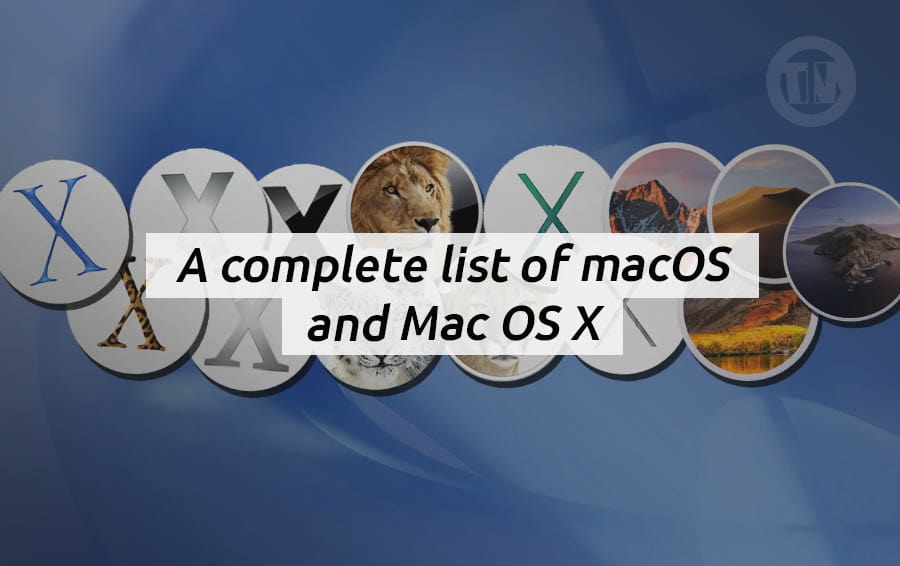
For example, from 2001 to 2012, it was the era of the big cats—Cheetah, Puma, Jaguar, Panther, Tiger, Leopard, Snow Leopard, Lion, and Mountain Lion. Names that suggested speed, grace, and power.
FYI, Apple actually named these versions after grapes, except for Snow Leopard, which didn’t have a code name.
Then, in 2013, Apple changed course and began naming macOS releases after Californian places—Mavericks, Yosemite, El Capitan, Sierra, and so on. Internally, the grape names were replaced with apple varieties starting in 2015.
In 2016, Apple refreshed its entire brand, with Mac OS X officially becoming macOS, joining iOS, watchOS, and tvOS in a consistent naming format. This also paved the way for the biggest leap forward to date, macOS 11 Big Sur in 2020, which introduced a major visual redesign and support for Apple’s own silicon chips.
Fast forward to 2025, Apple has decided to align version numbers across all its operating systems. This means the upcoming macOS 26 Tahoe will match the numbering of iOS 26, iPadOS 26, and others.
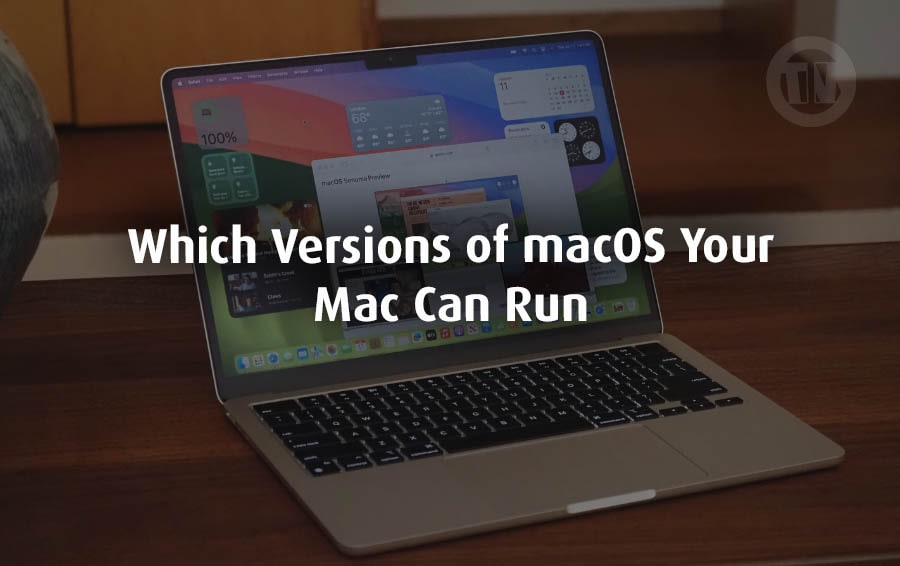
Which Versions of macOS Are Still Updated?
Apple has a clear policy for keeping macOS fresh and secure. The latest version always receives a full suite of updates—both new features and critical security patches. Currently, that title is held by macOS Sequoia (version 15).
If you’re using Sequoia, you’re at the forefront, with all the latest tools, tweaks, and protections Apple has to offer.
But Apple doesn’t necessarily exclude all users who aren’t on the latest release. The two versions prior to the latest still receive security updates and bug fixes—just without the latest features.
Currently, this means that whether you’re using macOS 14 Sonoma or macOS 13 Ventura, your Mac still receives security patches to protect you from vulnerabilities.
However, older versions will be left behind. For example, when Sequoia is released in 2024, macOS 12 Monterey—released in 2021—will stop receiving updates. And in 2023, the launch of Sonoma marks the end of official support for macOS Big Sur (released in 2020).
So, if you’re using Monterey or an older version, you won’t have Apple’s safety net. Going forward, once macOS 26 Tahoe arrives this fall, Ventura will almost certainly be removed from the update list as well.
One more thing, Apple’s update policy doesn’t just apply to its operating system. Their Safari browser also gets its own updates, but there’s a catch—you must be running one of the supported versions of macOS.
As of September 2024, the latest Safari is Safari 18, and it only works on Ventura, Sonoma, or Sequoia.
How to Check Which macOS Version You’re Running
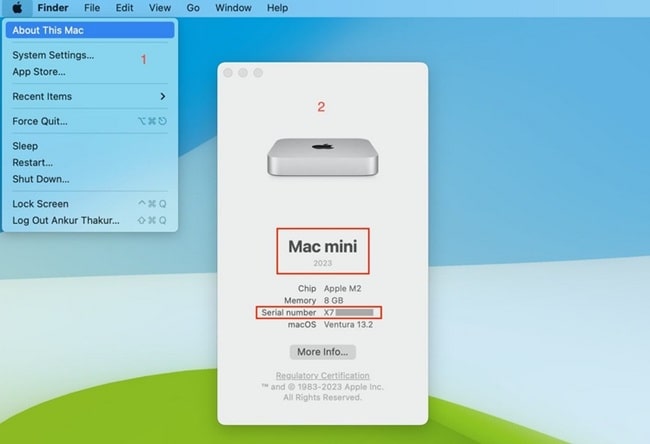
To check, you can follow this guide..
- Click the Apple logo in the top-left corner of your screen
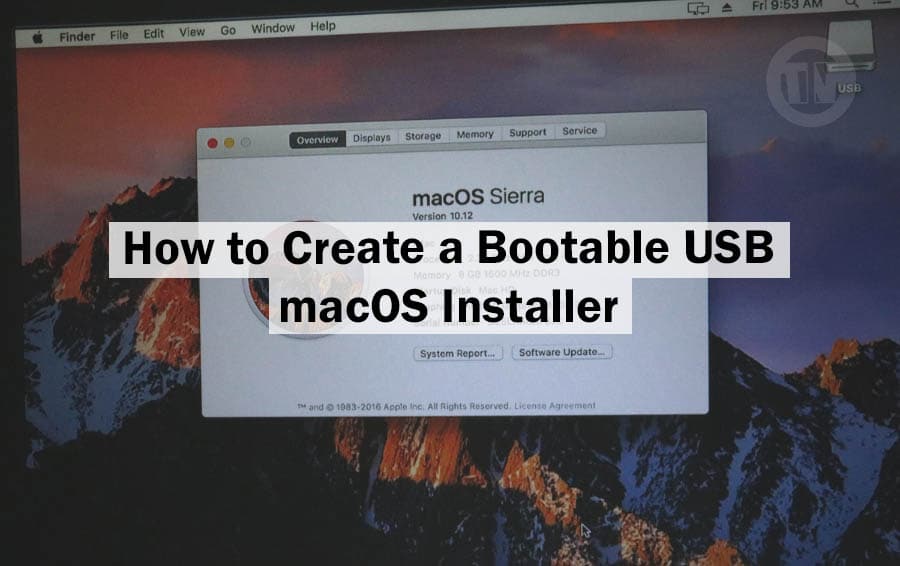
- Select About This Mac from the menu
- You’ll see a window that clearly shows your macOS name and version number, along with the most recent update installed
macOS Versions in Order
Here’s the entire macOS timeline, starting with the first public beta in 2000 and ending with the upcoming macOS 26 Tahoe..
- OS X 10 beta: Kodiak – September 13, 2000
The public got its first taste of the new Mac OS X with this beta. - OS X 10.0: Cheetah – March 14, 2001 (Latest: 10.0.4)
Sleek and fast in name, but in reality? Let’s just say it was a little sluggish. Still, it introduced the Aqua interface that wowed users with its glossy, colorful look. - OS X 10.1: Puma – September 15, 2001 (Latest: 10.1.5)
Apple listened to feedback and made things faster and more stable. Puma was basically Cheetah with a much-needed performance boost. - OS X 10.2: Jaguar – August 14, 2002 (Latest: 10.2.8)
With its iconic spotted wallpaper and a ton of new features, Jaguar felt like the OS X era had truly begun. - OS X 10.3: Panther (Internal: Pinot) – October 24, 2003 (Latest: 10.3.9)
Sleeker UI, better performance, and new features like Exposé for window management—Panther showed Apple was hitting its stride.
- OS X 10.4: Tiger (Merlot) – April 29, 2005 (Latest: 10.4.11)
Spotlight search debuted here, making it easy to find anything on your Mac instantly. For Intel Mac users, OS X 10.4.4 (Chardonnay) launched on January 10, 2006. - OS X 10.5: Leopard (Chablis) – October 26, 2007 (Latest: 10.5.8)
A bold redesign with translucent menus and Time Machine for effortless backups. - OS X 10.6: Snow Leopard – August 28, 2009 (Latest: 10.6.8)
This one was all about refinement, speed, and efficiency. Still considered one of the most stable macOS versions ever. - OS X 10.7: Lion (Barolo) – July 20, 2011 (Latest: 10.7.5)
Borrowed ideas from iOS, like launchpad and full-screen apps, but not everyone loved the changes. - OS X 10.8: Mountain Lion (Zinfandel) – July 25, 2012 (Latest: 10.8.5)
Brought Messages, Notification Center, and deeper iCloud integration—pushing Macs further into Apple’s ecosystem.
- OS X 10.9: Mavericks (Cabernet) – October 22, 2013 (Latest: 10.9.5)
The first free macOS update. Named after the famous surfing spot in California, it emphasized performance and battery life. - OS X 10.10: Yosemite (Syrah) – October 16, 2014 (Latest: 10.10.5)
A visual overhaul like flat design, bright colors, and Continuity features to connect Macs and iOS devices. - OS X 10.11: El Capitan (Gala) – September 30, 2015 (Latest: 10.11.6)
A refinement update that made Yosemite’s design faster and smoother.
- macOS 10.12: Sierra (Fuji) – September 20, 2016 (Latest: 10.12.6)
First time Apple used the “macOS” name is when launched Siri to the Mac. - macOS 10.13: High Sierra (Lobo) – September 25, 2017 (Latest: 10.13.6)
Behind-the-scenes improvements like the APFS file system—visually less appealing, but technically important. - macOS 10.14: Mojave (Liberty) – September 24, 2018 (Latest: 10.14.6, July 2021)
Brought dark mode, desktop stacks, and a more polished look. - macOS 10.15: Catalina (Jazz) – October 7, 2019 (Latest: 10.15.7, Security Update 2022-005)
Ditching 32-bit apps and introducing Sidecar, turning your iPad into a second screen.
- macOS 11: Big Sur (GoldenGate) – November 12, 2020 (Latest: 11.7.10, September 2023)
A massive redesign with rounded UI elements and optimized for Apple Silicon Macs. - macOS 12: Monterey (Star) – October 25, 2021 (Latest: 12.7.6, July 2024)
Introduced Universal Control and AirPlay to Mac. - macOS 13: Ventura (Rome) – October 24, 2022 (Latest: 13.7.6, May 2025)
Added Stage Manager, Continuity Camera, and new security features. - macOS 14: Sonoma (Sunburst) – September 26, 2023 (Latest: 14.7.6, May 2025)
Improved widgets, gaming performance, and streamlined video conferencing tools. - macOS 15: Sequoia (Glow) – September 18, 2024 (Latest: 15.5, May 2025)
The current macOS, focused on productivity upgrades, better integration with iOS, and overall polish. - macOS 26: Tahoe (Cheer) – Coming Fall 2025
Next in line, aligning version numbers across all Apple platforms.
How to Install the Latest Version of macOS
The way you update your Mac depends on how old your operating system is, because Apple has changed the update process over the years. So to follow the tutorial, just adjust it to the version of Mac you are using…
a. If You’re on Very Old macOS Versions
Back in the day, major versions of Mac OS X came on physical disks, and updates were delivered through the Software Update tool. That all changed in 2011 when the Mac App Store became the main way to download and install macOS.
b. From Mojave (2018) Onwards
With macOS Mojave, Apple moved system updates to a dedicated Software Update section, making it more integrated with system settings. This is now the standard way to install updates.
Here’s how it works based on your current version..
In Ventura or Later
- Open System Settings
- Click General
- Select Software Update
- Click the small “i” icon next to Automatic Updates
- Make sure these options are turned on:
- Check for updates
- Download new updates when available
- Install macOS updates
If all are checked, your Mac will keep itself updated without you lifting a finger. If you won’t automatic updates, just toggle them off.
In Monterey, Big Sur, Mojave, or Catalina
- Open System Preferences
- Go to Software Update
- Check the box for “Automatically keep my Mac up to date” (or “Download new updates when available”)
- Also check Install macOS updates
In High Sierra or Earlier
- Open System Preferences
- Select App Store
- Check the box for “Automatically check for updates”—make sure all four sub-options underneath are also ticked
- If you don’t want updates downloading in the background, uncheck “Download newly available updates in the background”
Conclusion
From its launch to today, macOS reflects how Apple has matured, adapted, and shaped the way we use computers.
MacOS is now faster, more secure, and more ecosystemically connected than ever before. It’s an OS that not only responds to the way we work—it actively helps us work better.
And if history is any guide, the next chapter in this story will be just as exciting as the last.