

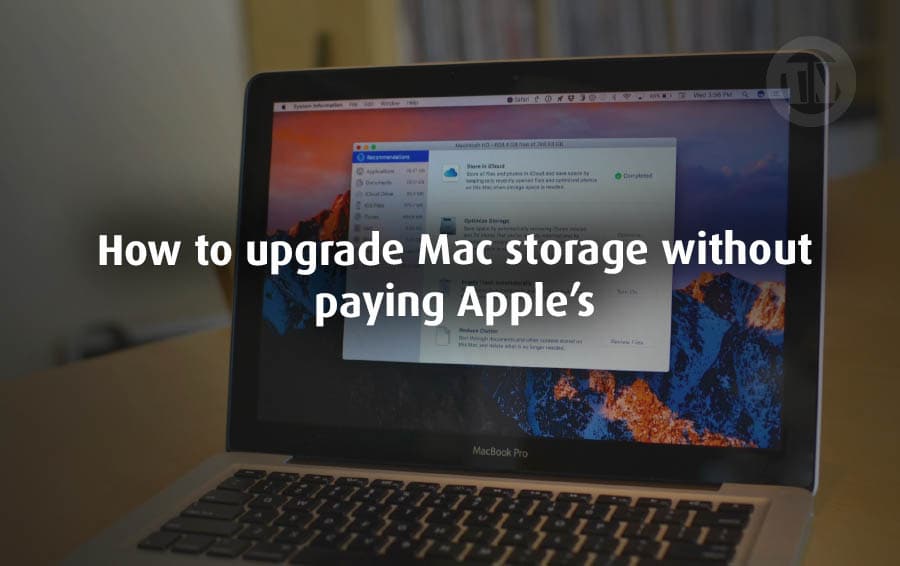
Let’s be real, guys—if you’ve ever tried customizing a Mac at the Apple Store, you probably noticed one thing: upgrading storage directly from Apple feels ridiculously expensive. Sometimes, just bumping up from 256GB to 512GB or 1TB can cost more than an entire external drive with double or even triple the capacity. And honestly, why pay extra if there are smarter, more flexible, and wallet-friendly options out there?
The good news is, you don’t have to settle for Apple’s pricey upgrades. There are plenty of reliable ways to boost your Mac’s storage without breaking the bank. From portable SSDs that slip easily into your pocket, to network-based storage that works like your own private cloud, the options are diverse and can fit any kind of workflow. Whether you’re a student with tons of assignments, a video editor handling 4K footage, or just someone tired of constantly deleting files to free up space—there’s a solution here for you.
So, let’s dive into some of the best storage upgrade choices for your Mac that won’t leave your wallet crying.
6 Best Choices to upgrade your Mac storage without paying Apple’s
1. External SSDs and Hard Drives
When it comes to striking a balance between price, speed, and capacity, external storage devices are hard to beat. They’re straightforward, versatile, and give you way more control over your storage than Apple’s built-in upgrades.
Take the LaCie Mobile Drive for example, you can snag the 1TB version for around $80/£56 on Amazon, and if you need more, the 5TB model costs less than $170/£115. Compare that with the price Apple charges just to jump from 256GB to 512GB of built-in storage.
At least, there are two types of drive version options..
- Solid-State Drives (SSDs):
They’re definitely fast, reliable, and perfect for working with large files like videos, audio tracks, or creative projects. However, they’re certainly more expensive than regular hard drives. - Hard Disk Drives (HDDs):
Of course it’s slower compared to an SSD, but of course it’s much more affordable if you need to store bulk data such as archives, movie collections, or backups.
Now, you need to consider whether you want a desktop-class drive or a portable drive. To help you decide, here’s an overview..
- Desktop drives are bulkier, require their own power source, and usually sit on your desk permanently. They’re great if you want a large, stable storage hub.
- Portable drives, on the other hand, are lightweight, compact, and powered through your Mac’s USB-C or Thunderbolt port. Perfect for carrying in a bag and taking on the go.
2. USB Flash Drives
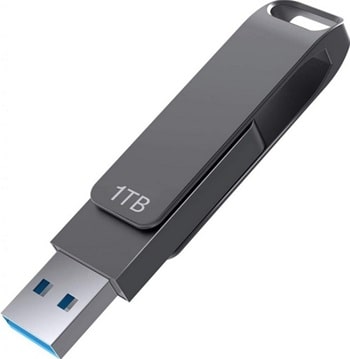
You might know them as thumb drives or memory sticks, and yep—of course I’m including them. USB flash drives are essentially flash memory sticks that plug directly into your Mac’s USB port.
Small, lightweight, and definitely portable, flash drives are the kind of storage device you can always keep in your pocket, backpack, or even on your keychain.
At very low prices, you can get a 128GB or 256GB flash drive for under $30, like this Samsung model, for example. And if you need more, there are even capacities up to 2TB.
Flash drives also come with some nice extras these days..
- Some have dual connectors (USB-A on one end and USB-C on the other), making them super flexible if you’re working across old and new devices.
- Others include built-in encryption to keep sensitive files secure.
However, there are several things you need to consider..
- Flash memory has limited durability, meaning these drives wear out faster if you’re constantly writing and deleting files.
- Since they’re cheap to make, many use lower-quality parts. So, while fine for casual storage, they aren’t meant to replace a full-fledged SSD or hard drive.
But at least you can use a flash drive for some needs such as…
- Keeping photos or videos from a shoot neatly separated from everything else
- Managing files for a one-off project
- Quick, temporary backups
3. SD Cards
Have you heard of SDXC cards? They’re typically used in cameras. And not just for cameras, this storage can also be used on Mac devices.
However, only some Macs—like the MacBook Pro and Mac Studio—have a built-in SD card slot. If you’re using a different Mac model, you’ll need an adapter (around $10/£10) or a hub/dock with an SD slot.
At least you can use SD cards for various activities, such as…
- Moving files between Macs or other devices
- Keeping project-specific files separate
- Acting as a backup option when you’re working on location
However, SD cards aren’t a permanent storage option, because, like USB flash drives, their memory chips can degrade with frequent writing. While SD cards are designed to be better quality than cheap flash drives, they’re still not designed to be your primary, always-connected storage.
SD cards are available in a variety of sizes, from 32GB to 2TB, with various speed classes. Higher-capacity, faster cards can sometimes be more expensive than external SSDs, due to their smaller size.
4. Network-Attached Storage (NAS)
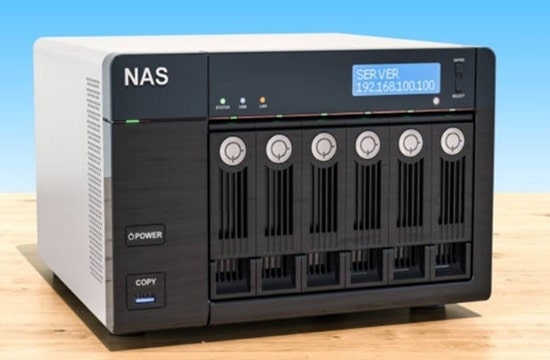
NAS, short for Network-Attached Storage, can be described as your own personal cloud at home. Instead of paying a monthly subscription to Apple or Google to store your files online, with a NAS you can have your own cloud and keep everything running on your home network.
You simply install a NAS device at home (usually a small box with a hard drive inside), connect it to your router, and all the devices in your home can access it. This means every Mac, iPhone, iPad, even a Windows laptop or Android phone can access that storage space whenever they need it.
Interestingly, some NAS systems allow you to access files remotely while traveling. Of course, some brands charge extra for this feature, but it’s certainly worth the price.
In terms of price, NAS devices come in a variety of flavors. If you just need something simple, there are entry-level units with integrated hard drives, starting at 2TB of storage for $150/£150.
However, if you need something more, you can opt for more advanced setups that can accommodate multiple removable drives, providing expandable storage of up to 8TB or more. Of course, the higher the capacity and the more advanced features (such as RAID setups, media servers, or backup automation), the higher the price, often reaching hundreds of dollars.
In short, NAS is perfect for people who…
- Want shared storage that multiple devices and users can access
- Need a private, secure alternative to cloud services
- Like the idea of managing their own data without relying 100% on third parties
5. Cloud Storage
Cloud storage, essentially, is what most of us already use in one form or another, whether it’s Apple’s iCloud, Google Drive, Dropbox, Microsoft OneDrive, or Box. Unlike a NAS, which you have in your home, cloud storage is stored online on someone else’s server.
You pay a subscription fee, and in return, you get space to store your files, and of course, you can easily access them almost anywhere (as long as your device is connected to the internet). Because cloud storage relies on internet access, it may not be the best option for some.
However, cloud storage is very useful in various situations, such as…
- Backups
- Archiving photos and videos
- Storing files you don’t need every day but want to access occasionally
- Freeing up space on your Mac’s internal drive
Most providers also offer free plans, but to be honest, they’re usually quite small. Apple for example, only gives you 5GB of free iCloud Drive storage—which fills up quickly if you’re syncing photos or backing up data.
For cloud storage to really work, you need to pay for a plan, and that means factoring in recurring costs.
6. Mac Mini and Mac Studio SSD Upgrades
Lastly, I’d like to suggest upgrading the internals.
Unlike MacBooks and iMacs, which mostly have internal storage that can’t be replaced or expanded, the Mac mini and Mac Studio are a bit different. Their internal SSDs are slotted, making them physically upgradeable.
However, Apple doesn’t officially support this. In other words, if you buy a Mac mini or Studio, Apple doesn’t want you to replace the storage later.
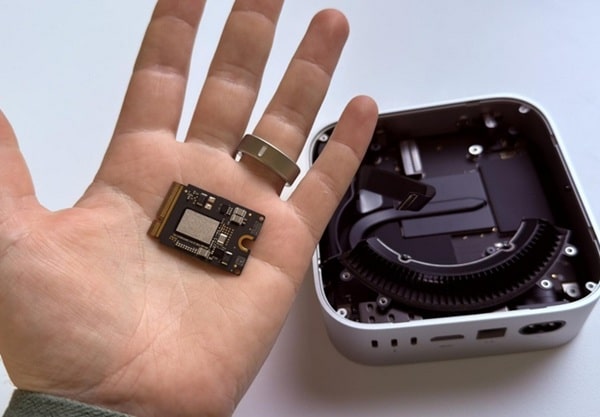
They’d rather you pay the upfront price for more storage. Of course, there are third-party providers like Expand Mac mini and PolySoft Services that offer SSD upgrade kits along with video tutorials to guide you through the process.
The pros..
- You can expand your storage internally, avoiding the need for external drives hanging off your desk
- It can be significantly cheaper than what Apple charges
- Performance is often on par with Apple’s built-in SSDs
The cons?
- The installation isn’t exactly plug-and-play. If you’re not comfortable opening up your Mac, it might feel intimidating
- There’s always a risk of damaging your Mac, especially if you’re not experienced with hardware upgrades
- If Apple discovers you’ve opened it up and tinkered with the internals, you could void your warranty
Conclusion
At this point, there may not be a one-size-fits-all solution for increasing Mac storage without having to spend money on Apple. However, there are certainly alternatives, such as the methods I’ve shared above.
And of course, it all depends on how much storage you need, as you might just need a backup, or you might be running out of space, etc.