

So, you’ve got your Mac fired up, an external monitor ready to go, and you’re excited to enjoy that sweet dual-screen productivity setup — but then… nothing. The second screen stays black, your Mac acts like it’s the only screen in the world, and suddenly you’re wondering what went wrong.
Well, you’re not alone, guys. Tons of Mac users bump into this issue, and while it’s annoying, the good news is: it’s usually fixable.
Before diving into all the technical wizardry and cable-flipping, it’s helpful to understand why your Mac might be refusing to detect an external display. Spoiler alert: it’s not always your fault — sometimes it’s just a picky cable, a moody adapter, or even a power-saving feature trying to be “helpful” at the worst possible time.
Let’s break down the common culprits behind this display drama so you can get back on track — whether you’re working, gaming, or just trying to watch Netflix on a bigger screen.
Why Isn’t My Mac Detecting an External Display?
There’s more than one reason why your Mac is ignoring your monitor. It could be something trivial, or it could be something more technical. And among the various possibilities, here are some of them…
1. Incompatibility Between Mac and Monitor
Not all displays are compatible with all Macs, some older monitors may not support the resolution or refresh rate offered by your Mac. And some newer Macs, especially those with the M1 or M2 chip, have very specific support limitations for external monitors.
For example, did you know that the standard M1 MacBook Air officially only supports one external display?
2. Damaged or Faulty Cables
Cables can sometimes cause more problems than they solve. A cable might look good, but it could be damaged internally—or it could be the wrong type.
USB-C, Thunderbolt, HDMI, DisplayPort… they’re all available, and let’s not even mention dongles. Using cheap or uncertified adapters can seriously distort your signal.
Always make sure your cable is designed for video output.
3. Power Saving Settings on Your MacBook
If you’re using a MacBook and it’s running on battery power, its power may be too tight to support an external display. Some power saving features silently disable external output to extend your battery life, which is good in theory but actually works just fine.
Plugging your MacBook into a charger can sometimes be the only way to get the monitor back to life.
4. Outdated Dock Software or Drivers
Updating software is tedious (for me, that’s true). However, updating macOS and third-party dock firmware is actually crucial.
Outdated drivers can interfere with your connection and cause detection issues, especially if you’re using a hub or dock to connect multiple devices.
5. Incorrect Display Settings (Such as Resolution or Brightness)
Sometimes your Mac thinks it’s displaying something, but in reality, it’s not showing anything. This could be because the brightness might be too low, or the resolution setting might not be able to handle your monitor.
It could also be set to mirror or extend the display, confusing the output.
How to Fix Mac Display Issues
Now that you’ve reviewed the various possible causes above, can you diagnose what’s causing your Mac to not display on the monitor? If you’re still unsure of the possible cause, you can still try some of the methods below to fix a Mac that won’t detect an external display.
1. Double-Check Your Cables
The first thing to note, don’t overthink it—check your cables, a loose or slightly misaligned connector could be the culprit. Hold both ends of your cable—from your Mac to your monitor—and make sure they’re securely connected.
If you’re using an adapter, dongle, or dock, make sure they’re securely connected as well. And if you have a spare cable, replace it; sometimes the problem is simply a worn-out, overused cable that needs to be retired.
2. Don’t Rely on Battery Alone — Plug Your Mac In
As I mentioned earlier, if you’re using a MacBook, make sure it’s connected to power. Macs, especially when the battery is low or in battery saver mode, can save energy by disabling support for external displays.
It’s not your fault; it’s the Mac trying to help you by being efficient. So first, make sure your battery is sufficient, because if it’s running low, plug it in.
3. Unplug Everything and Start Over
Still no results? Let’s try a quick reset.
- Unplug all cables—video cables, power cables, adapters, everything
- Also, turn off the external monitor, if it has a power button
- Wait 30 seconds to a minute
- Now, plug everything back in—carefully and in the correct order
Sometimes the Mac and monitor just need a refresh and re-detection.
4. Does Your Mac Support Multiple Displays?
So, not all Macs support multiple external displays, especially the newer M1 and M2 models. If your setup has multiple monitors and only one is detected, your Mac may not be capable of handling more than one monitor.
To check, please try…
- Click the Apple menu > System Settings > General > About > System Report
- Look under Graphics/Displays to see how many displays your Mac supports
If you’re on an older version of macOS..
- Go to About This Mac > Support > Specifications, and look for Graphics and Video Support
5. If Using an Adapter, Make Sure It’s the Right One
Adapters and dongles are handy, but they’re not all made equal. Some are built for Thunderbolt, others for USB-C, and some only support data transfer, not video (that’s a huge difference).
So, try to check..
- Is your adapter Thunderbolt certified (if your Mac requires it)?
- Is your monitor’s resolution and refresh rate compatible with the adapter?
- Are you using a high-quality, name-brand adapter?
If in doubt, visit the manufacturer’s website to confirm compatibility — and download any drivers or firmware updates they offer.
6. Manually Tell Your Mac to Detect the Display
Your Mac might need a little nudge.
- Go to System Settings > Displays
- Hold down the option key on your keyboard
- Look for a hidden button called Detect Displays in the bottom right and click it
That tells your Mac to actively scan for a connected monitor — sometimes you need to tell it to.
If you’re using an older macOS version..
- Head to System Preferences > Displays and look for the Scaled button
- Hold option to make Detect Displays appear
7. Try Adjusting the Resolutions
Sometimes your Mac is technically connected… but the resolution it’s using isn’t supported by your monitor, so it just goes dark.
If that’s the case, you’ll need to do this..
- Still in System Settings > Displays, click Scaled
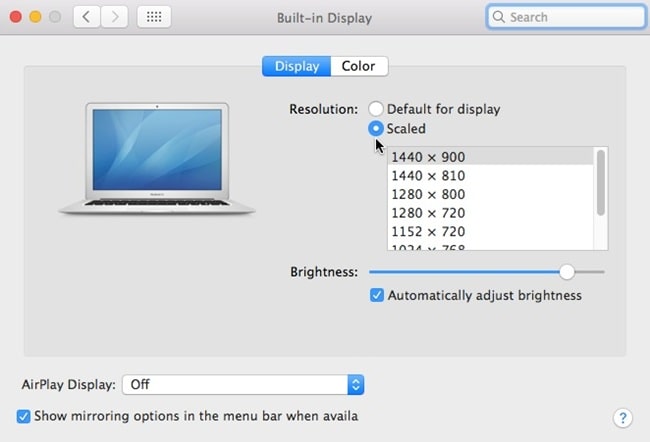
- Hold control and click a few different resolution options
- You can also select Show All Resolutions to get a bigger list
Pick one that’s standard (like 1080p or 720p) and see if the screen comes to life.
8. Turn Off Auto-Brightness and Adjust It Yourself
Some Macs like to take control of your brightness settings, but if the brightness is too low. The external monitor might be technically working — in that case, you just can’t see anything.
Here’s what you need to do..
- Go to System Settings > Displays > Brightness
- Uncheck “Automatically adjust brightness”
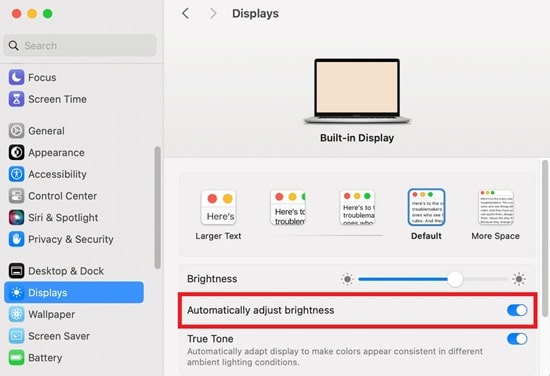
- Then manually turn up the brightness using the slider
Give your screen some sunlight — it might do the trick..
9. Put the Mac to Sleep, Then Wake It Up
It’s no joke — you can try this simple method too, and it even works in some cases.
- Click the Apple menu, then choose Sleep
- Wait 10–15 seconds
- Wake your Mac up (press a key, tap the trackpad)
Sometimes this soft reset kicks the display detection back into gear.
10. Restart Your Mac (Keep the Monitor Plugged In)
Still not working? Try restarting, but with the monitor still connected and on.
- Go to Apple menu, then choose Restart
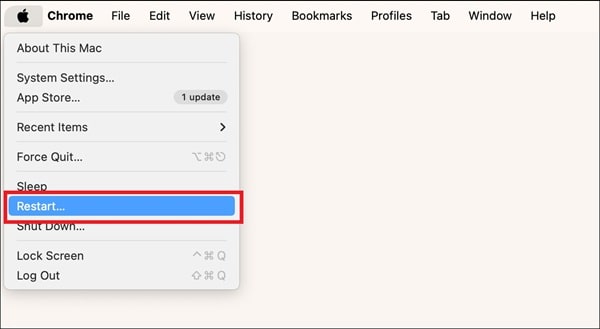
- Don’t unplug anything during the reboot
When your Mac starts up, it’ll scan for displays from the get-go. That alone might fix the issue.
11. Power Down Everything and Reboot Clean
Alright, if none of the above worked, it’s time for a clean slate. So, you need to do the following…
- Shut down your Mac
- Turn off your monitor (unplug it if needed)
- Disconnect all cables and adapters
- Wait 1–2 minutes
- Reconnect everything in this order:
- Plug the monitor into power
- Connect the display cable to the monitor
- Connect the cable to your Mac
- Power on the monitor
- Finally, boot up your Mac
This will reset both ends of the connection, forcing them to restart communication at startup (think of it as reintroducing two people who previously had a miscommunication).
Conclusion
External display issues on Macs are trivial, but they can still be annoying (especially if you’re in a hurry). But in most cases, one of the steps I’ve shared will resolve them.
With a little patience and the right sequence of operations, you’ll soon be back to enjoying your extra desktop for work.