

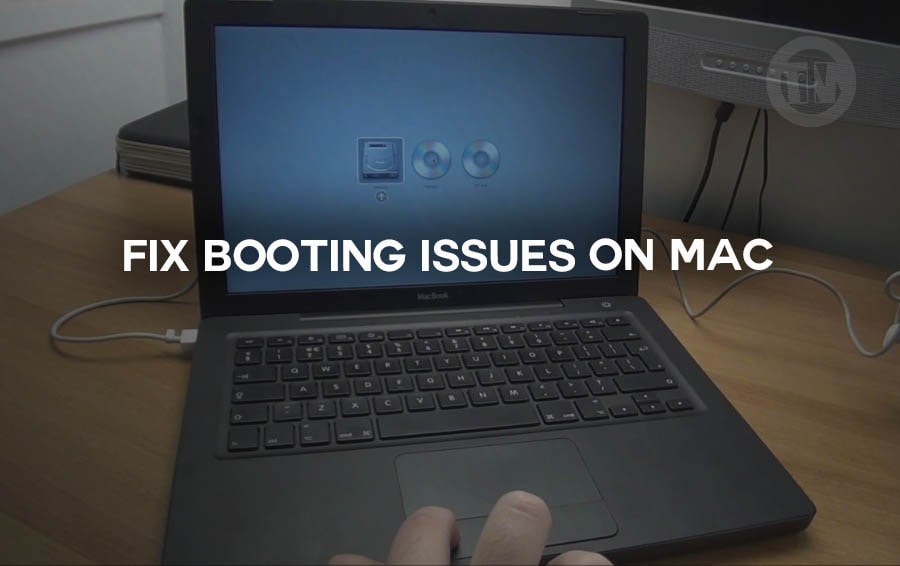
So, you press the power button on your Mac, and instead of immediately working as usual, it just freezes—perhaps displaying a blank screen, perhaps stuck on the Apple logo, or worse, showing no signs of life at all.
In some cases, booting problems on Macs are more common, and in others, they’re not as serious as they seem. The problem could be due to something like a problematic application, corrupted system files, or perhaps a peripheral that’s interfering with your Mac’s performance.
However, if this problem is currently happening to you, it’s certainly a headache. That’s why you need to read how to fix this Mac not booting issue, and that’s why I’m discussing it this time.
So, if you’re looking for a solution, you’ve come to the right article. Because in this article, I want to share methods you can try to fix your Mac’s booting problem.
How to Fix when Mac won’t Boot
I’ll share at least six methods, you can try each one individually of course.
1. Restart Your Mac in Safe Mode
When your Mac boots into Safe Mode, any additional items—such as startup items, third-party extensions, and unnecessary fonts—that might interfere with your normal startup process are disabled.
And by trying to boot into Safe Mode first, you can be sure…
- It checks your startup disk and attempts to fix directory issues.
- It disables all third-party applications and services from launching automatically.
- It also clears some system caches that might be causing the problem.
Essentially, Safe Mode strips your Mac down to its bare essentials, allowing it to function without interruption—this way, you can diagnose potential boot problems.
If you’re using a newer Mac with Apple Silicon (like the M1 or M2 chip), here’s how to do it..
- Shut down your Mac completely
- Press and hold the power button until you see loading startup options on the screen
- Choose your startup disk (typically “Macintosh HD”)
- Now, hold down the Shift key and click Continue in Safe Mode
- Your Mac will reboot automatically—this time in Safe Mode
Note:
The startup might be a bit slower than usual. That’s totally normal—it’s just your Mac doing its behind-the-scenes maintenance work.
2. Check and Manage Your Login Items
It’s not uncommon, and it’s not impossible, for your Mac to be having trouble booting up isn’t a system error—it’s a malicious application trying to start every time you log in.
Login items are applications or services set to launch automatically every time you turn on your Mac. Over time, this list can become quite large. Worse yet, a single problematic application can derail your entire startup process, causing slow boot times, frozen screens, or even a complete system crash.
So, at least you need to check and control your login items as follows..
- Click the Apple menu in the top-left corner and choose System Settings
- Go to General in the left sidebar
- Scroll down and select Login Items on the right
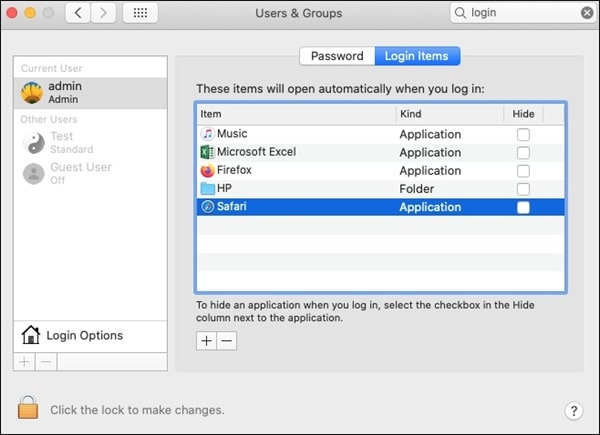
- You’ll see a list under “Open at Login”, this is your list of auto-starting apps
- Write down or screenshot this list so you don’t forget what’s there
- Select all items and click the Remove (-) button to temporarily disable them
- Then restart your Mac
If your Mac boots up properly after this step, that’s likely the problem. Now go back to Login Items and add the apps one by one.
After each addition, restart your Mac. This will allow you to find the single app causing the problem.
3. Unplug All Your Accessories
The problem is, sometimes it’s not the Mac itself that’s at fault, but rather something connected to it. Yes, an external hard drive, a USB mouse, or even a printer can interfere with your Mac’s ability to boot properly.
When your Mac starts up, it checks and communicates with every connected device. If one of those devices isn’t responding properly or is sending a bad signal, your Mac may freeze, slow down, or even stop starting altogether.
So what you need to do is..
- Shut down your Mac completely
- Disconnect everything—we’re talking flash drives, USB hubs, memory card readers, external displays, HDMI cables, printers, wired headphones—literally, if it’s plugged into your Mac, unplug it
- Now press the power button and let the Mac boot without any external influence
If it suddenly boots up like normal, you’ve just found the issue. Now it’s a matter of plugging your accessories back in one by one to see which one was the culprit.
4. Reinstall macOS (Without Losing Your Data)
If neither of the above methods solves the problem, reinstalling macOS may be the best course of action. And no—this doesn’t mean your photos, files, or installed apps will be deleted.
Reinstalling the operating system is like repairing the foundation of a house without touching the furniture.
Here’s how you can reinstall macOS safely..
- First, restart your Mac into macOS Recovery mode:
- For Intel Macs: hold Command + R while restarting
- For Apple Silicon Macs: press and hold the power button until options appear, then choose Options > Continue
- From the tools window, select Reinstall macOS, then click Continue
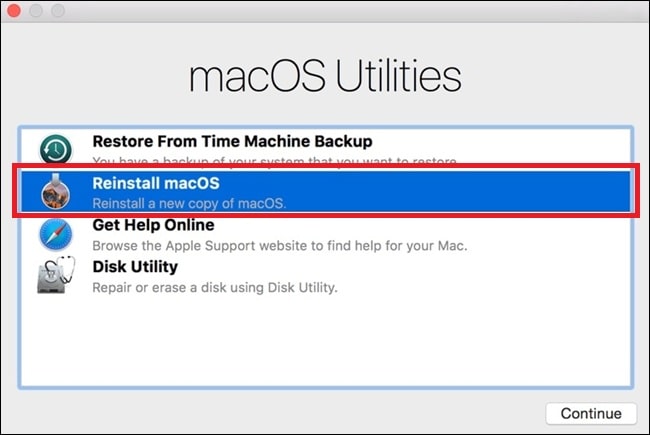
- Follow the on-screen prompts to begin installation
If the installer asks for your Mac login password, go ahead and enter it.
If your disk doesn’t show up as an option or you get an error, you may need to use Disk Utility to format or repair the disk first.
When asked where to install macOS, choose Macintosh HD or Macintosh HD – Data, whichever is available.
During installation, it might look like nothing’s happening. The screen might go black, stay stuck on a loading bar, or seem unresponsive.
Don’t touch anything. macOS installs in stages and may reboot several times in the process.
Once done, your Mac might boot into the Setup Assistant. If you’re reinstalling over your current system, just exit setup and head back into your familiar desktop environment—hopefully, with everything running smoother.
5. Reset Your Mac’s NVRAM
Has your Mac ever forgotten its startup disk, suddenly switched to a strange screen resolution, or exhibited strange behavior during startup? The problem likely stems from its NVRAM (Non-Volatile Random Access Memory).
NVRAM stores small settings like startup disk selection, screen resolution, volume level, time zone, and other boot-related configurations. At the very least, resetting the memory can resolve some potential issues.
Here’s how to reset NVRAM..
- Shut down your Mac completely
- Press the power button, then immediately press and hold:
Command (⌘) + Option + P + R - Hold all four keys down for about 20 seconds
- Release the keys and let your Mac restart
After the reset, some system preferences (like volume or time zone) might be back to default. That’s normal—just tweak them back the way you like.
This only works for Intel-based Macs, Apple Silicon (M1, M2) handles these settings differently and resets them automatically when necessary.
6. Reset the SMC (System Management Controller)
If all else fails—your last resort is to reset the SMC, the System Management Controller is responsible for the following..
- Power button behavior
- Battery charging
- Fan control
- Sleep and wake functions
- Thermal management
- LED indicators
If your Mac isn’t responding to the power button, gets hot for no reason, or won’t boot, the SMC might need a quick reboot. Below, I’ll share SMC reset instructions, which vary depending on your Mac model.
a. For Desktop Macs (iMac, Mac Mini, Mac Pro)
- Shut down the Mac
- Unplug the power cable
- Wait for 15 seconds
- Plug the power back in
- Wait another 5 seconds, then press the power button to turn it on
b. For MacBooks with T2 Security Chip (Touch ID-equipped)
- Shut down your MacBook
- Press and hold the power button for 10 seconds
- Release and wait a few seconds, then press the power button again to turn it on
If the issue continues..
- Shut it down again
- Press and hold:
- Left Control + Left Option (Alt) + Right Shift
- Keep those held down for 7 seconds, then add the power button too
- Hold all four keys for another 7 seconds
- Release all, wait a few more seconds, and turn your Mac on
c. For MacBooks without T2 Chip (Non-removable Battery)
- Turn off your Mac and unplug it
- Press and hold the following keys:
- Shift (left) + Control (left) + Option (left) + power button
- Hold for 10 seconds, then release
- Plug the power adapter back in and turn the Mac on
d. For Older MacBooks with Removable Batteries
- Power down the Mac and remove the battery
- Unplug the power adapter
- Press and hold the power button for 5 seconds
- Release, reinsert the battery, reconnect the power, and boot as usual