

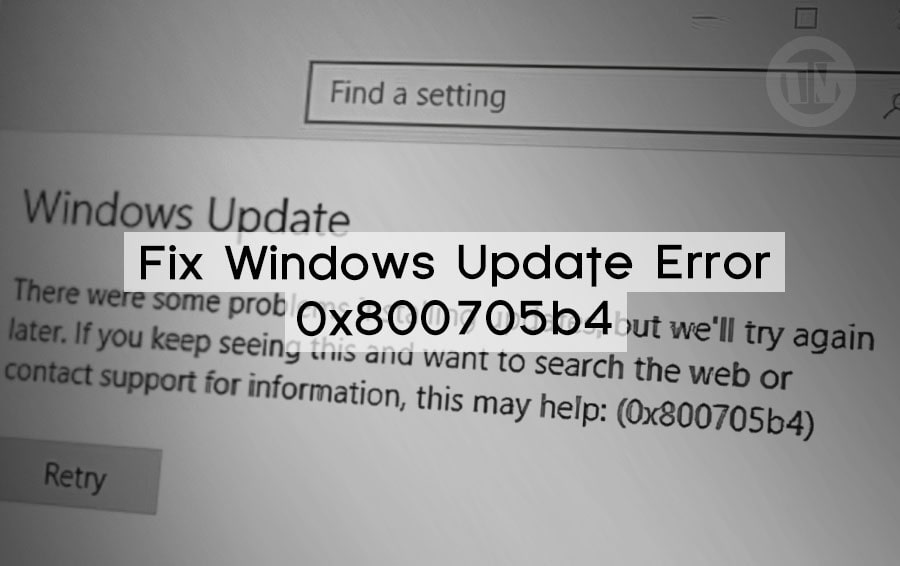
Okay, guys—so picture this: you’re about to wrap up for the day, shut down your PC, and suddenly—bam!—Windows throws a wrench in your plans with an update error code that looks like something straight out of a sci-fi movie: 0x800705b4. Annoying? Absolutely. Confusing? You bet. But don’t worry, you’re not alone. A lot of people have run into this exact same issue, and while it might look intimidating, it’s actually more common than you think.
This error usually pops up when you’re trying to install Windows updates—whether it’s a security patch, a new feature update, or just one of those routine bug fixes. The system seems like it’s going to update smoothly, and then… nope. You get the dreaded red text and a failed attempt.
Now, we get it—updates are important. They’re not just about shiny new features; they help keep your system stable, safe, and running like butter. So when Windows refuses to cooperate, it’s a problem you want to fix sooner rather than later.
The good news? This isn’t some rare or unsolvable problem. We’ve all been there, and there’s a whole toolbox of methods you can use to sort it out. Whether you’re someone who’s super techie or just a casual user trying to make your laptop work again, this guide is going to walk you through every possible fix in the simplest way possible.
But first—before we jump into fixes and tools—let’s take a minute to break down why this error shows up in the first place. Because if you understand the “why,” the “how to fix it” becomes a whole lot easier to tackle.
Why Does the 0x800705b4 Error Happen?
Error code 0x800705b4 is Windows’ way of telling you something is wrong with your computer, but unfortunately, Windows doesn’t tell you what it means or why it appears.
But behind that cryptic number are some possible causes that are actually quite understandable. And among those possibilities are the following..
1. Windows Update Stuck
Sometimes, the update system itself gets stuck. It could be that one of its core services isn’t working properly, or maybe an update file is corrupted somewhere.
This is arguably the most common reason for this error—Windows is simply tangled up in its own processes.
2. Overprotective Antivirus Software
We all love good security, but sometimes your antivirus can get overprotective and end up blocking parts of the update process. It thinks it’s helping, but it’s actually getting in the way.
Antivirus software like Norton, Avast, or McAfee have been known to interfere with Windows updates from time to time.
3. Missing or Corrupted System Files
If some of your core Windows system files are corrupted or missing, the update process can go haywire. These files are like the building blocks of your OS—if one is missing, the whole thing can fall apart.
4. Malware or Suspicious Software
Sometimes, it’s not just your antivirus that’s causing the problem—it’s something malicious lurking on your system. Certain types of malware are designed to mess with system processes, including Windows Update.
So if your system has been acting strangely lately in addition to this update error, it’s definitely a red flag.
5. Misconfigured Update Settings
Windows gives you several options to control how and when updates are installed. If some of these settings are accidentally changed or corrupted, your system may be confused enough to block the update.
6. Network Interference
If your internet connection is unstable or there’s a firewall issue in your network settings, the update may not be able to reach Microsoft’s servers properly. An incomplete download can certainly result in a failed update.
How to Fix the 0x800705b4 Windows Update Error
Now that you know the various causes, here I will explain the various solutions that you can take to fix it..
1. Start with the Windows Update Troubleshooter
Think of the Windows Update Troubleshooter as your built-in digital mechanic. The troubleshooter may not always work very well, but it can detect and fix simple problems automatically.
At the very least, this troubleshooter often gives you a clue as to what’s wrong. Here’s how to use it..
- Go to Settings > System > Troubleshoot > Other troubleshooters
- Find Windows Update and click Run
- Let Windows do its thing—it might take a few minutes
While this won’t completely fix the problem, you may get an error message or code that will help you figure out how to fix it.
2. Run a Full Antivirus Scan
Sometimes, it’s not Windows that’s messing up your update process—it’s malware or a virus running around in the background. Running a full system scan with Windows Defender or your preferred antivirus app can help.
Just follow these steps..
- Open Windows Security from the start menu
- Go to Virus & threat protection
- Click on Scan options and select Full Scan
- Let it run—it might take a while, but it’s worth it
If any suspicious files are found, delete or quarantine them, then try updating again.
3. Manually Reset Windows Update Components
Sometimes, Windows Update is the one that is stuck, and the only way out is to manually reset it a bit. And to fix this, please try the following method..
- Type “cmd” in the start menu, right-click on Command Prompt, and choose Run as administrator
- In the black command window, type these commands one at a time, pressing enter after each..
net stop wuauserv
rd /s /q %systemroot%\SoftwareDistribution
net start wuauserv
This stops the update service, clears the update cache (which can get buggy), and restarts everything fresh. A good ol’ restart for Windows Update.
4. Temporarily Disable Your Antivirus Software
Yes, the very tool that’s supposed to protect your PC might actually be getting in the way. Some antivirus programs, especially heavy-duty ones like Norton or McAfee, have been known to block certain Windows services—even though they shouldn’t and certainly aren’t intended to.
- Open your antivirus software
- Look for an option to disable real-time protection or turn off the program temporarily
- Once disabled, try running Windows Update again
Just make sure to turn your antivirus back on once you’re done testing. This is just a quick test, not a long-term fix.
5. Tweak the Windows Update Settings
Sometimes, Windows just needs a little push (just like us). Resetting or adjusting your update settings can give it the nudge it needs to get back on track.
Here’s what you can try..
- Head over to Settings > Windows Update > Advanced options
- Turn off Receive updates for other Microsoft products
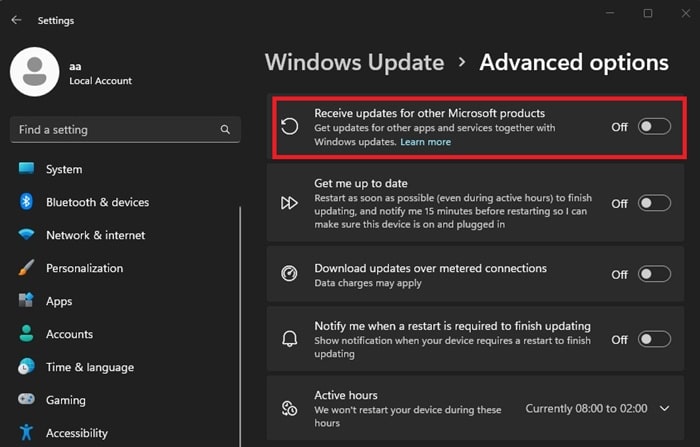
- Also, try disabling Automatic Updates, reboot your PC, then turn updates back on again
Doing this forces Windows to refresh its update behavior, which can clear up the error.
6. Use the SFC /Scannow Command to Fix System Files
Corrupted system files are often the reason why every update fails. Luckily, Windows comes with a command called System File Checker (SFC) that automatically hunts for them and fixes them.
Here’s how to run it..
- Open Command Prompt as administrator
- Type the following command and press enter..
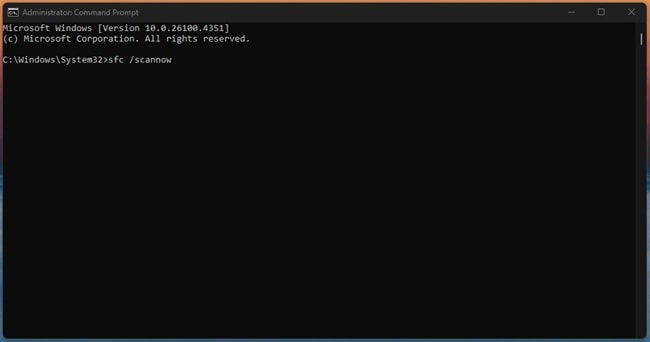
sfc /scannow - This process can take a while, but it’s doing good behind the scenes
Once it’s done, restart your PC and try running the update again.
7. Run a DISM Scan to Fix Deeper Issues
If SFC doesn’t fix the problem, there’s another more powerful tool, DISM. DISM stands for Deployment Imaging Service and Management, and it repairs the system image that Windows relies on to keep it running.
And the steps to use it are as follows..
- Open Command Prompt (as admin)
- Type the following command and hit enter..
DISM /Online /Cleanup-Image /RestoreHealth - Let the process complete, it might take up to 30 minutes depending on your system
Afterward, reboot your PC and give the update another try. If something was broken deep within Windows, this should fix it.
8. Boot into Safe Mode with Networking
Sometimes, the culprit is a third-party app running in the background. Booting into Safe Mode with Networking disables most of that extra noise so you can isolate the issue.
Please try entering Safe Mode in the following way.
- Press Windows + R, type “msconfig”, and hit enter
- Go to the Boot tab
- Check the box for Safe boot, and select Network
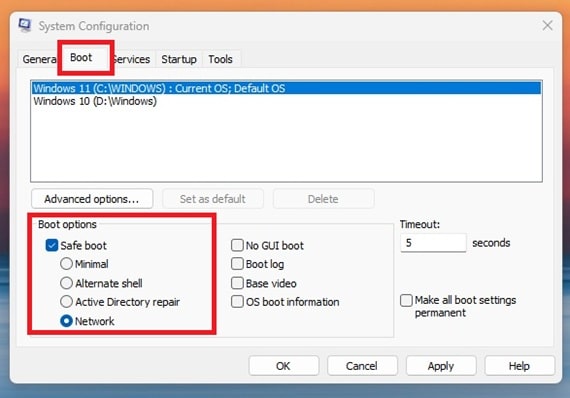
- Click OK, then Restart
Once you’re in Safe Mode, try checking for updates again. If it works, you’ve just narrowed the issue down to a third-party app interfering in normal mode.
9. Reset Windows
This is the nuclear option—the one you only go for if literally nothing else worked. Resetting Windows gives you a fresh start, free of corrupted files, messed-up settings, and problematic apps.
Here’s how to do it..
- Go to Settings > System > Recovery
- Under Reset this PC, click Get Started
- Choose Keep my files (if you don’t want to lose personal data), or Remove everything for a full wipe
Before doing the reset, always back up your important files—just to be safe. You never know what might get lost in the process.
It’ll take a bit of time, but you’ll end up with a clean, updated version of Windows that’s ready to go.
Conclusion
Maybe that’s all I can teach you about how to handle the Windows update error issue with code 0x800705b4. Hopefully by applying one of the methods above, you can solve the problem on your PC/laptop.
Most importantly, always check for updates and backup your important data, to avoid bad possibilities if something happens to your Windows.